Getting Support
Your comments and questions are important and help us improve this development portal. Every time we receive feedback, we will update the portal to help other developers who may have the same questions or comments.
If you have questions on an API and how to use it, you can:
- Ask for help as described here.
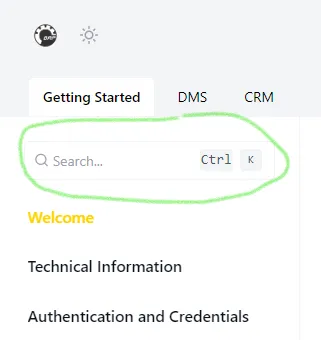
Remember to search the portal for information using the search box at the top of the left-side menu.
Open a Support Ticket
If you don’t find the answer you want on the portal, you can use the DCP Jira portal to ask the DCP team for support.
How To Access
Once you have signed the DCP agreement, a DCP team member will create a group for your company in Jira, and you and your team members will receive an invite via email.
The email contains a link to sign up for the Jira ticketing system. Once you click on the link, you will be taken to the Jira platform to create your account.
Main Menu
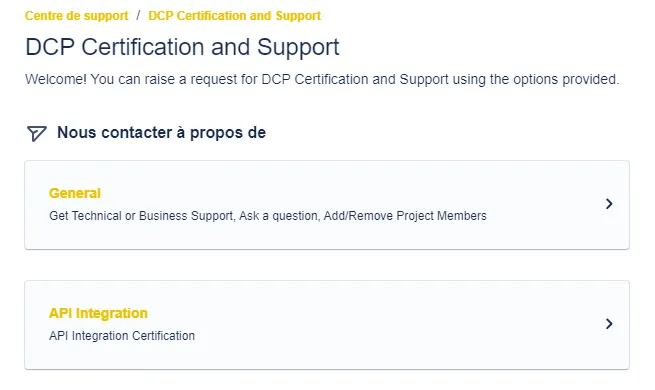
When you go on the DCP Jira portal, the following screen will appear d once you log in.
❗❗ Before creating a ticket, check that you are in the DCP Jira portal ❗❗
Check the section Make Sure You Are In the DCP Portal! below.
Click on the General menu.
Select a Topic
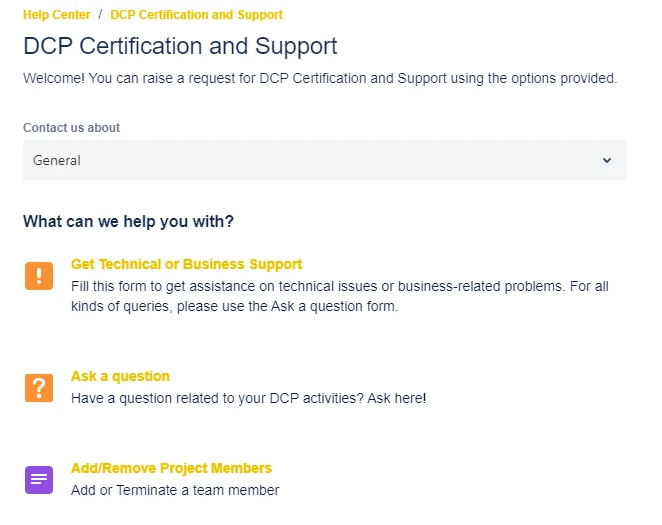
The DCP Certification and Support menu is displayed.
Select a topic:
- Get Technical or Business Support
- Ask a question
- Add/Remove Project Members
The appropriate form is displayed.
Technical or Business Support
The Get Technical or Business Support form creates tickets for technical and non-technical issues, as selected in the What is the ticket regarding? list box.
Fill out the form: provide the subject matter of the issue and any relevant context and details of the questions. If applicable, you may also attach any form of media (e.g. text file, screenshots, etc.)
The impact is the overall effect of the issue on the dealer's operations related to the DCP integrations. It should have a quantifiable impact, like loss of money, time, or resources.
If applicable, provide media attachments that help to understand the issue.
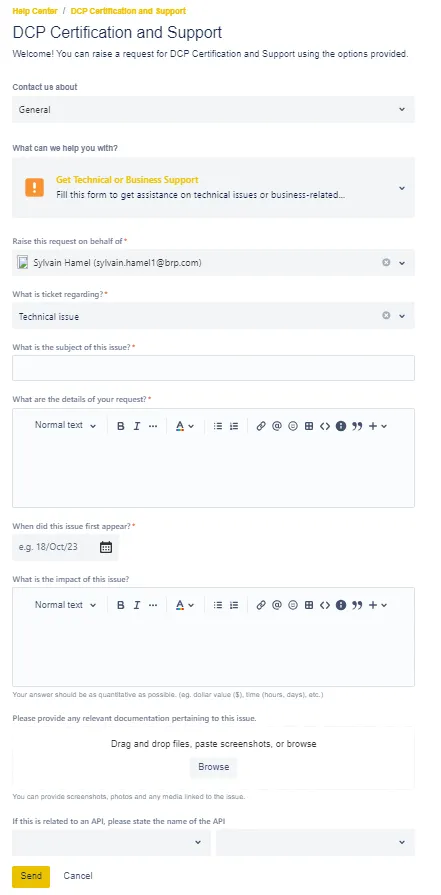
If the issue is related to an API, make sure to fill out the last two combo boxes shown below.
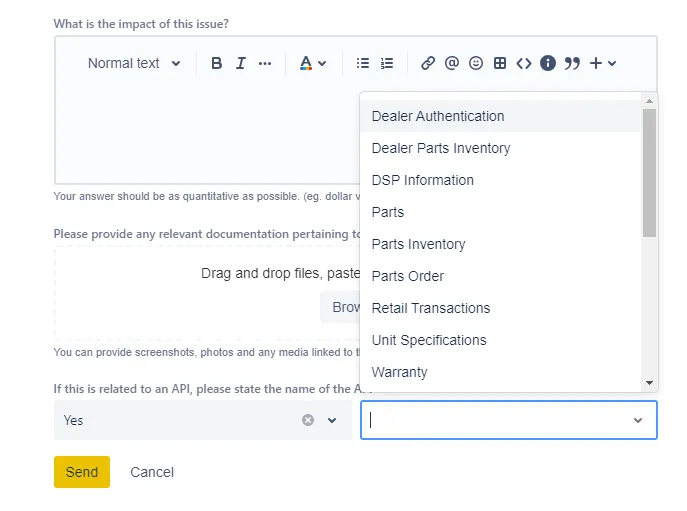
When all the information has been provided, click the Send button to create the ticket.
Ask a Question
The Ask a Question form is used to ask the DCP team a question.
❗ The Ask a Question form cannot be used to report an issue or update a certification status.
Fill out the form: provide the subject matter of your question and any relevant context and details of the questions. If applicable, you may also attach any form of media (e.g. text file, screenshots, etc.)
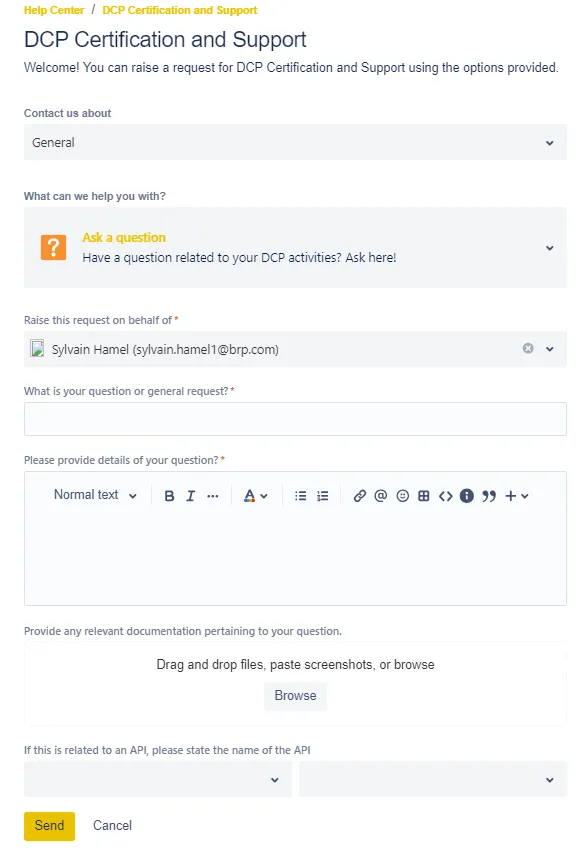
If the question concerns an API, please complete the last two combo boxes shown below.
When all the information has been provided, click the Send button to create the ticket.
Add/Remove Project Members
The Add/Remove Project Members form is used to add or remove a team member.
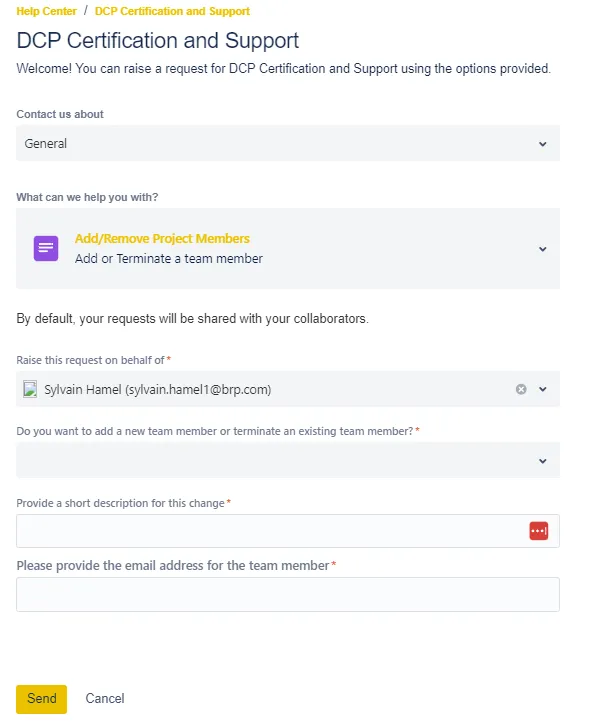
When all the information has been provided, click the Send button to create the ticket.
Managing Your Tickets
Ticket Status
Once a ticket is created, it moves through several different statuses on its journey to completion.
When a status change is made, the users associated with that ticket receive an email notifying them of the change.
The ticket workflow is shown below.
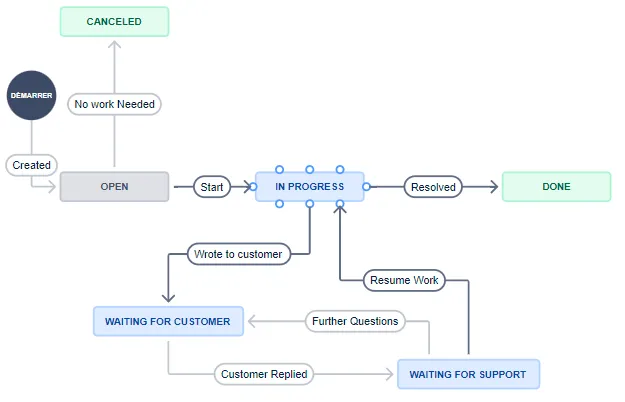
Open: The user has just submitted the ticket.
In Progress: An agent has prioritized and assigned a resource to begin work on the ticket.
Waiting for Customer: An agent is waiting for you to respond with more information regarding the request.
Waiting for Support: You responded to the ticket and worked on it, but the work has yet to resume.
Done: The ticket has been resolved
Cancel: The ticket has been closed without action.
Viewing Your Tickets
To view your tickets, click on the Request button on the top-right corner of your homepage.
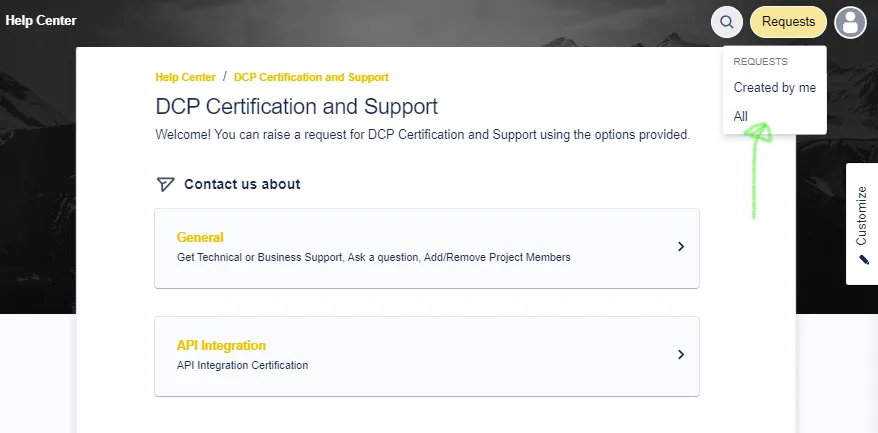
You can view all tickets created by you and all tickets created by your team.
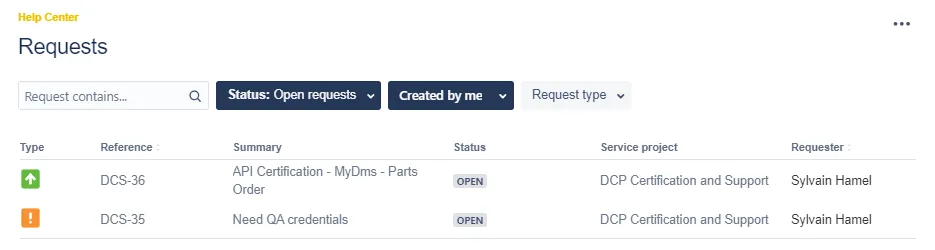
The ticket list is shown. You can filter the list by ticket status, creator name, or request type.
Receiving and Providing Information via the Ticket
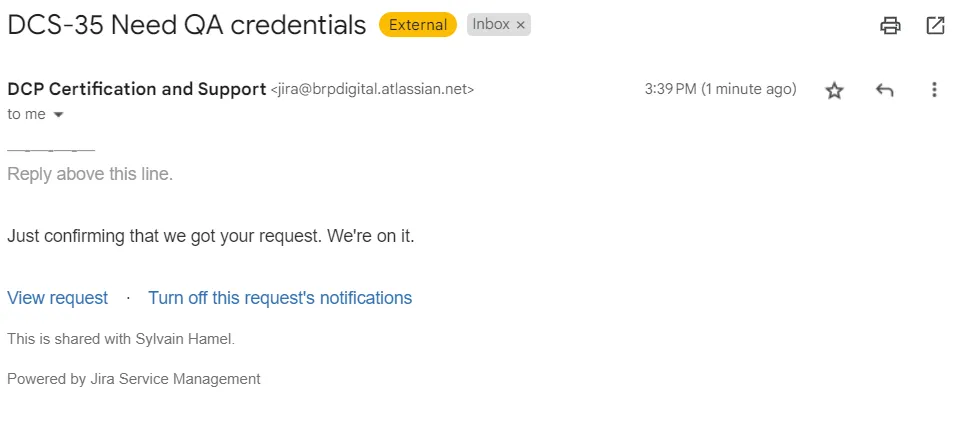
After you create a ticket, you are sent an automated acknowledgment of its creation. You will receive subsequent email notifications when the DCP agents add progress notes to your tickets.
If your ticket needs your attention, you can provide communication in two ways:
- You can click on the link View Request at the bottom of your notification email to access your ticket. You can follow the steps provided above in Viewing Your Tickets and go directly through the Jira ticketing system.
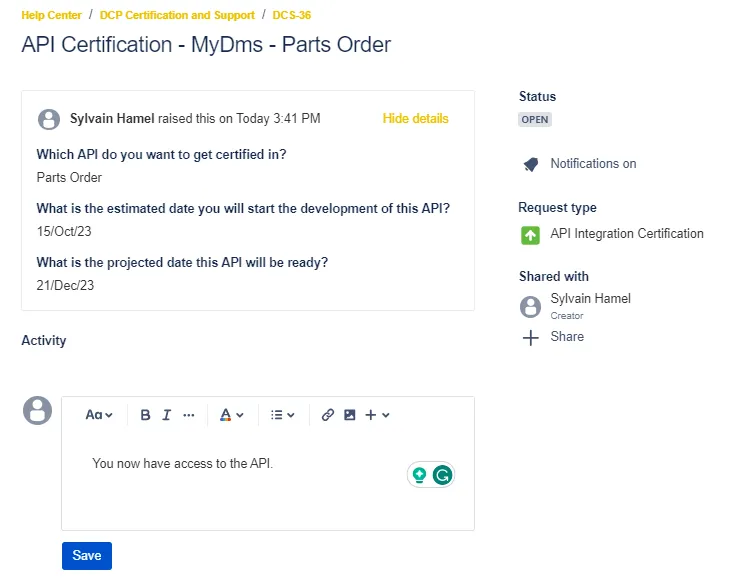
Once you are in the ticket, you can select the Add a comment bar to add a comment or provide media attachments.
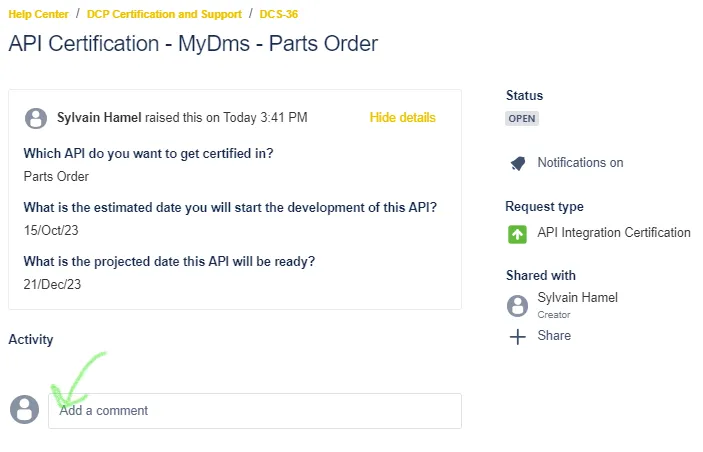
Once you click Add a comment, you can write your comment, format your text, and add attachments. Once your response is complete, click Save.
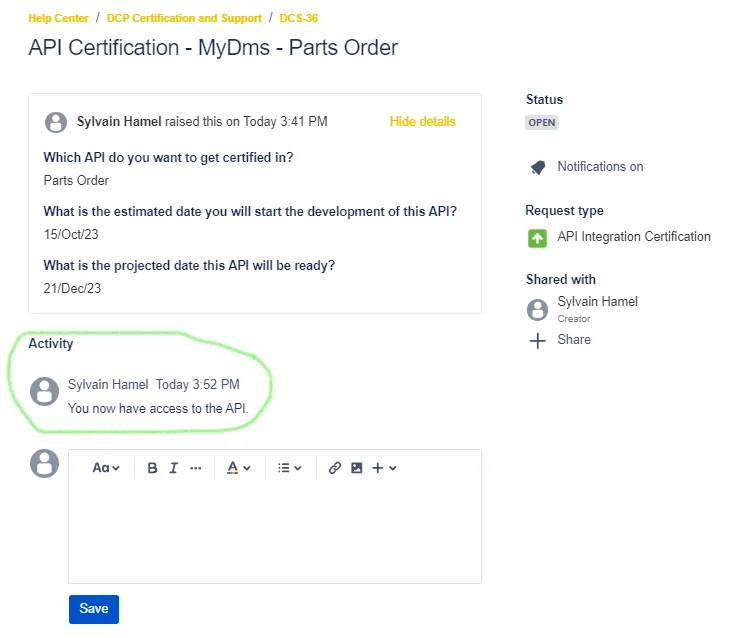
This page contains all updates from you and the DCP team. The comments are displayed sequentially, as shown in the image below. This makes the progress on your request easy to access and monitor at all times.
Email Notifications
When a DCP team member changes the ticket status, you will receive an email notification that indicates what was done.
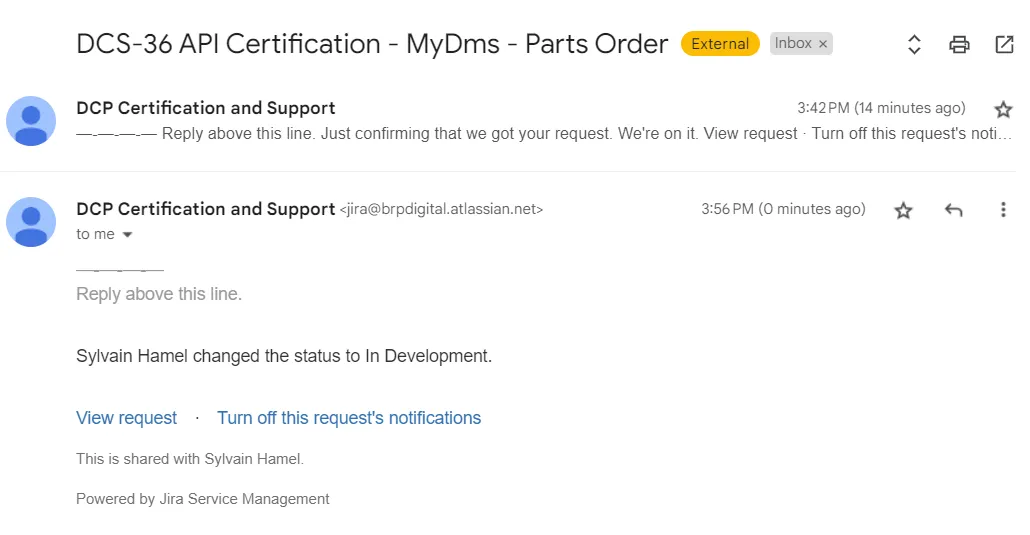
If a DCP Team member adds a comment to the ticket, you also receive a notification message.
Make Sure You Are In the DCP Portal!
The DCP Jira is using Jira Service Management (JSM).
🛑 You have access to all the JSM projects at BRP!
So, before creating a ticket, ensure you are in the DCP Certification and Support portal.
When you are in the DCP Jira portal, click on the Help Center link in the top left corner. You will be sent to the main BRP JSM page, where you can see all the portals!
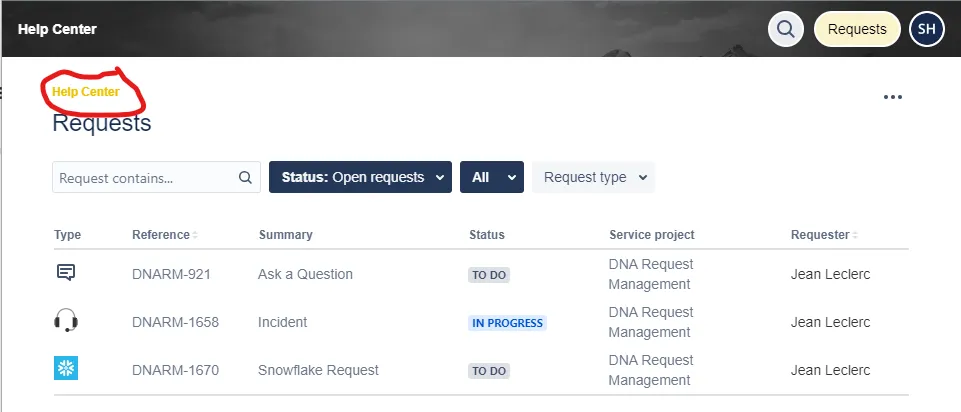
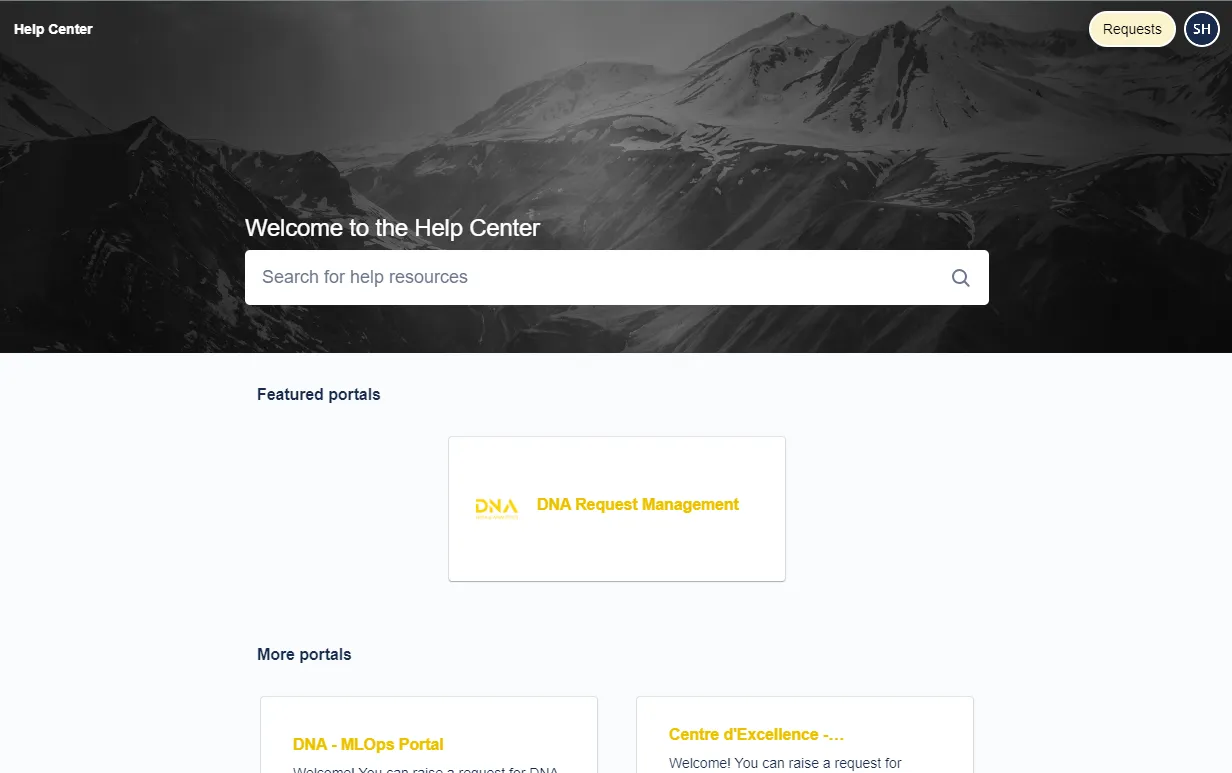
It will be ignored if you create a ticket in a portal other than the DCP Certification and Support portal!
If you are on the Help Center main page, the safest way to find the DCP Certification and Support portal is to use the search field and look for DCP.
A list of help resources is displayed.
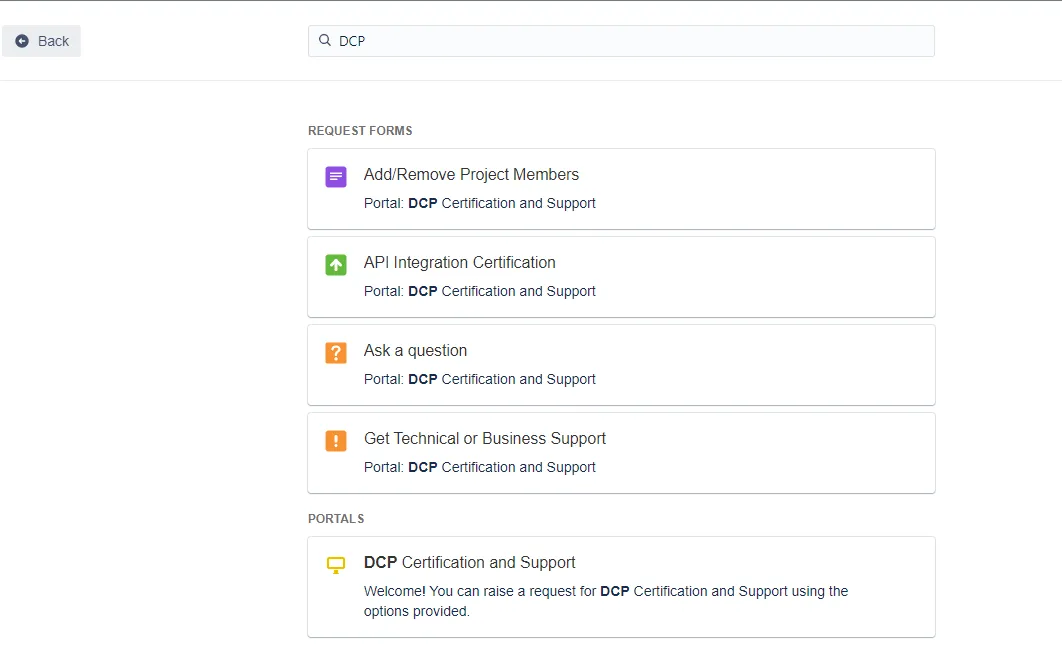
You can open one of the DCP forms from the search result or go to the DCP Certification and Support portal.
Give Feedback on The Portal
You can give feedback directly on the portal, including reporting errors or missing information, using the Did this page help you? field found at the bottom of each page
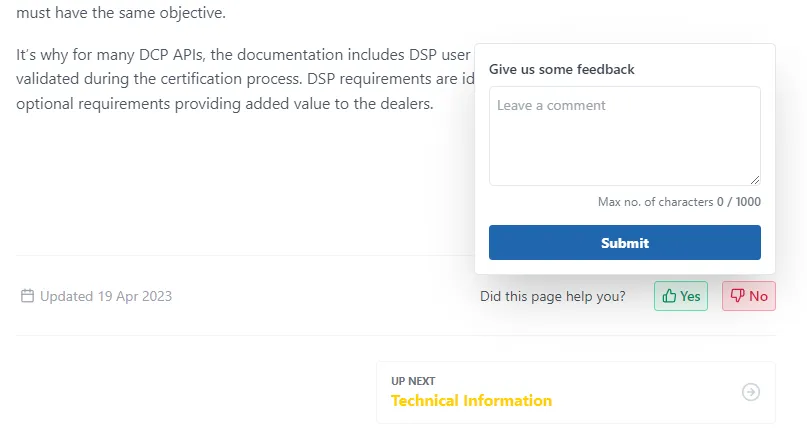
This feedback will help us improve the portal.